
Tower MCP — Claude Connector
Tower Exchange supports Anthropic's Model Context Protocol (MCP), allowing you to connect Claude directly to Tower's decentralized exchange aggregator on Arc.
Once connected, you can interact with your Web3 wallet and Tower's smart routing engine directly in your conversational Claude chat sessions:
- Query Wallet Balances: Ask Claude to check your live EURC, USDC, and other token holdings.
- Get Smart Swap Quotes: Compare DEX rates and discover optimal routes across Arc liquidity pools.
- Execute Swaps In-Chat: Authorize and execute swaps with a single confirmation.
- Non-Custodial Security: You retain full control over your funds. Claude only requests signed execution with your explicit permission.
Video Walkthrough
Watch the complete video tutorial below to see how to add Tower Exchange to Claude, connect your wallet, and execute swaps:
Quick Connector Settings
When adding Tower Exchange to Claude, use the following server configuration:
| Setting | Value | Description |
|---|---|---|
| Connector Name | Tower Exchange | Display name in Claude's connectors list |
| Server URL | https://www.tower.exchange/mcp | HTTPS endpoint where Tower handles MCP requests |
| Authentication | Sign in now (Detected) | Authenticate with your Web3 wallet via Tower's sign-in flow |
| OAuth Client | Register automatically (Detected) | Dynamic client registration managed by Claude and Tower |
Step-by-Step Setup Guide
Follow the steps below to configure Tower Exchange in your Claude app:
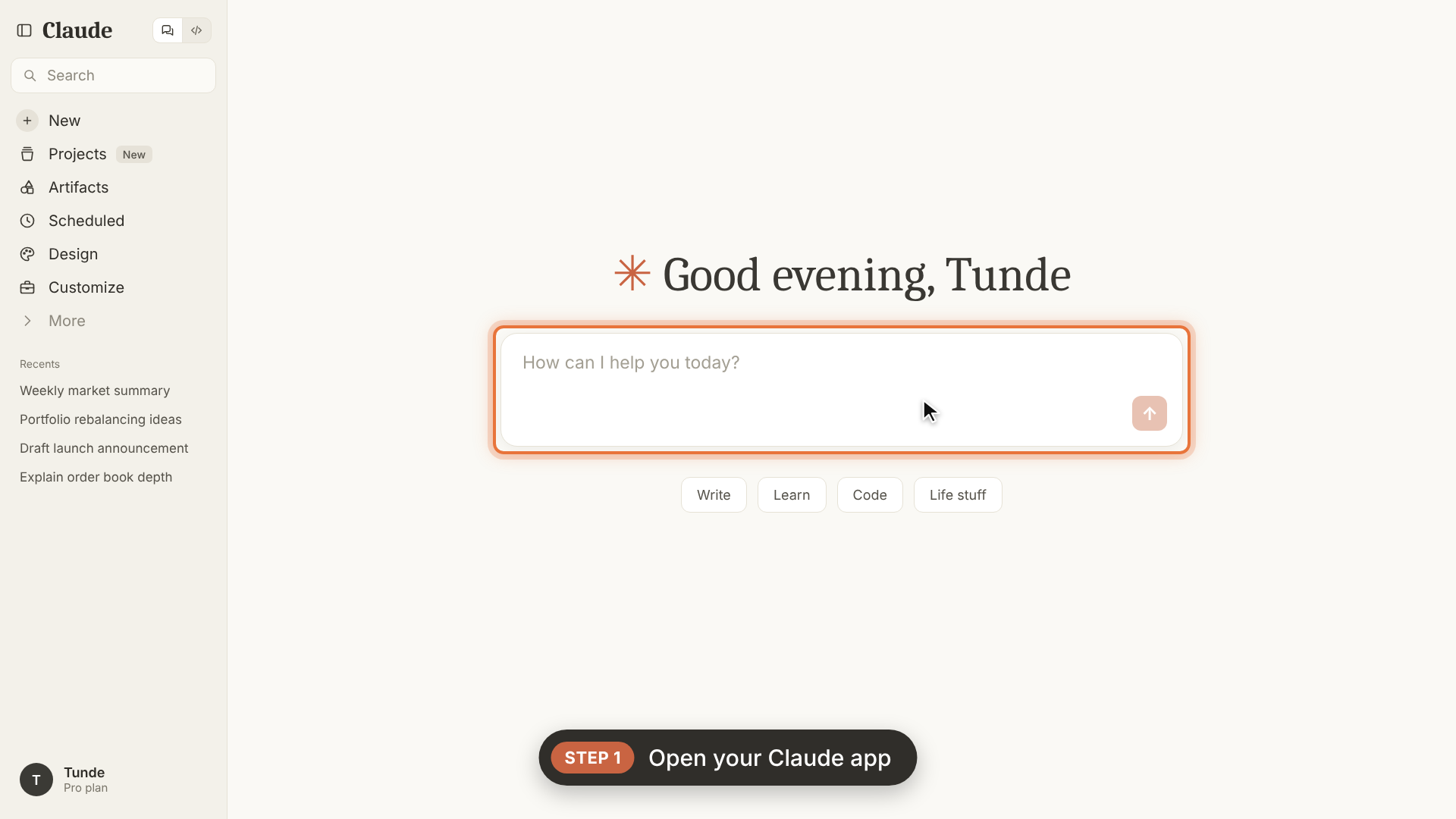
Step 1: Open your Claude Chat app
Step 1 = Open your Claude Chat app
Launch your Claude desktop application or open claude.ai in your web browser and sign in to your account.
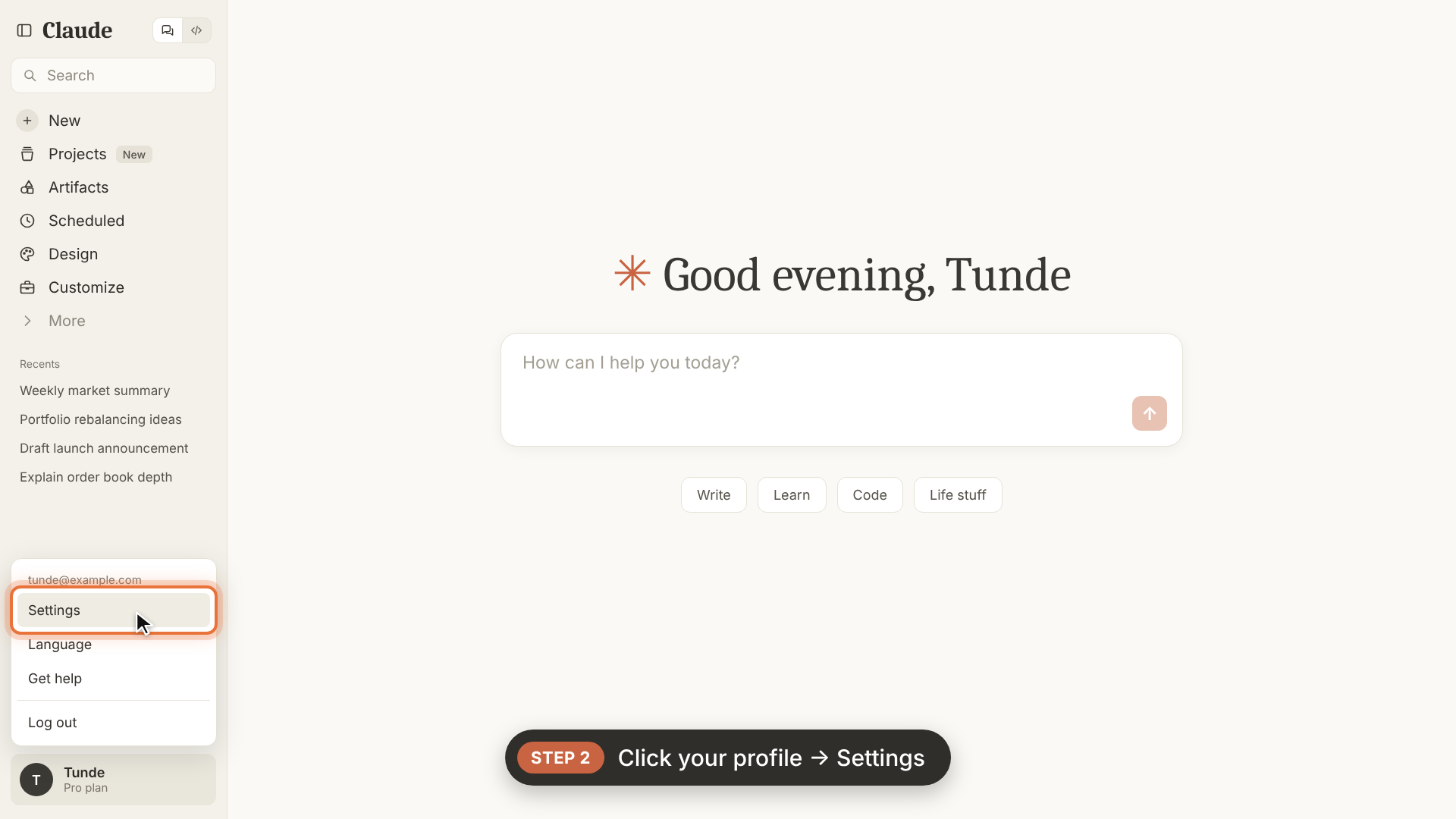
Step 2: Go to your profile
Step 2 = Go to your profile
Click on your account profile avatar or name in the bottom-left corner of the sidebar, then select Settings from the menu.
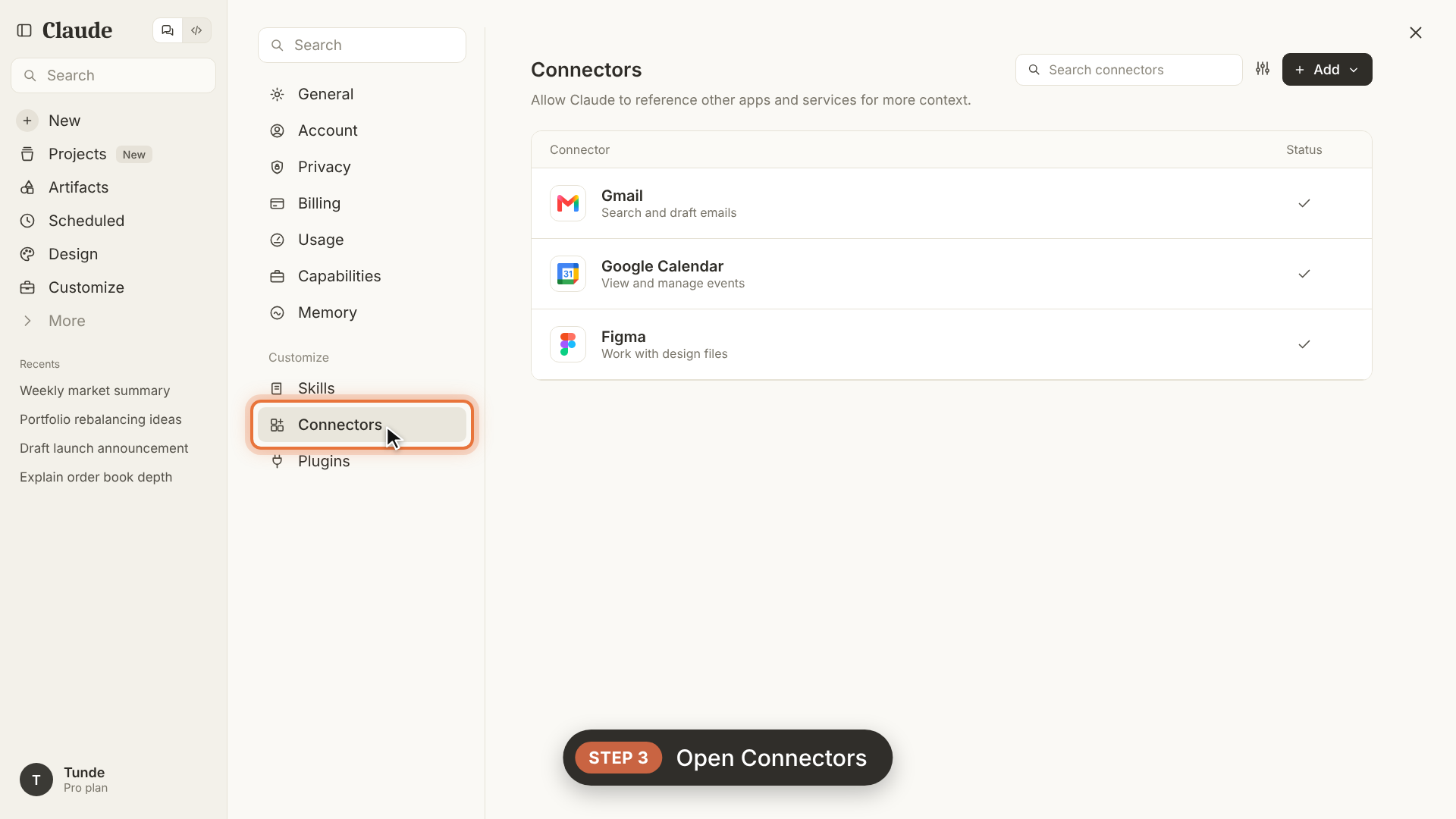
Step 3: Look for connector
Step 3 = Look for connector
In the Settings modal, look for Connectors under the Customize section on the left-hand navigation menu.
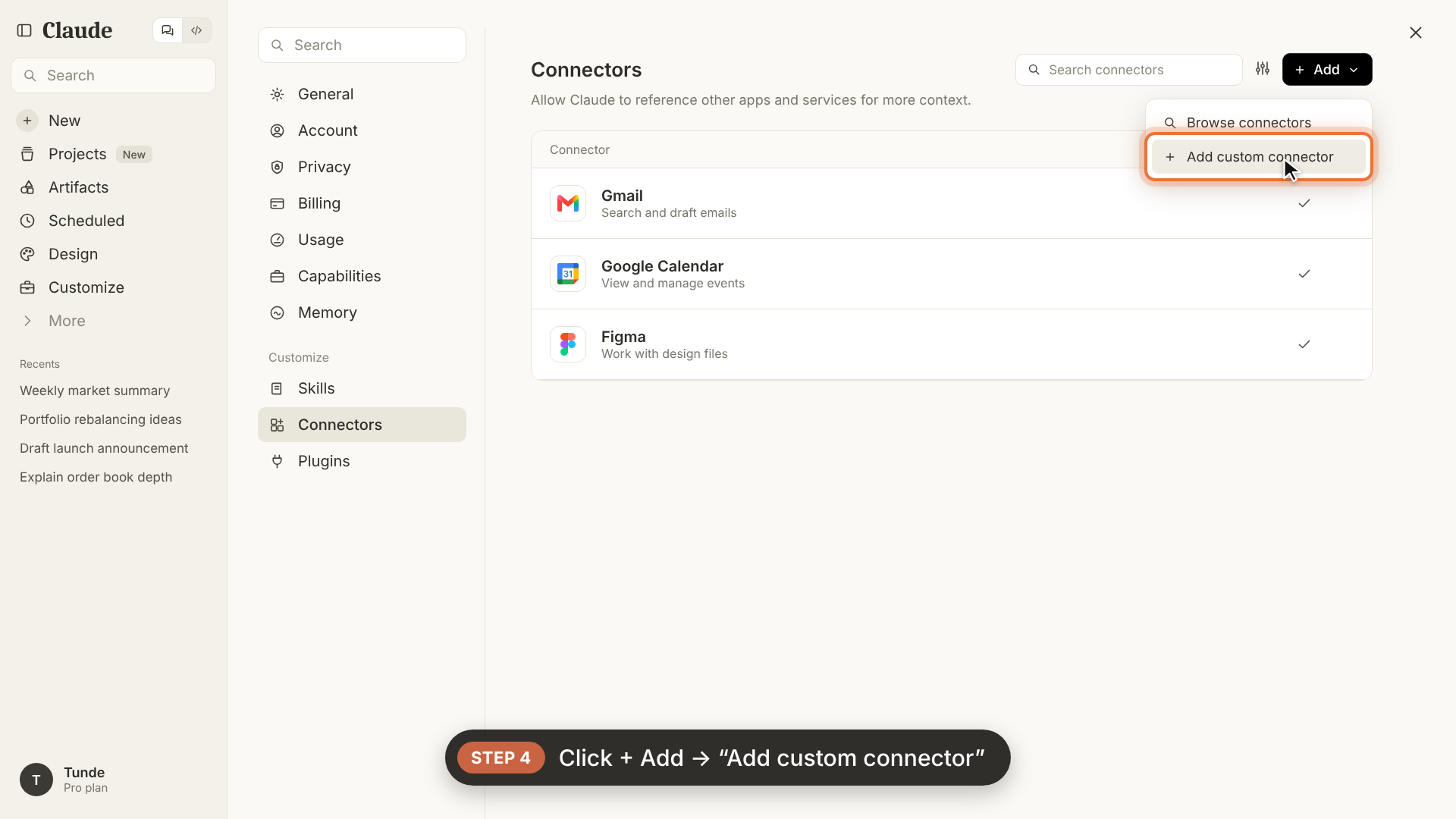
Step 4: Add custom connector
Step 4 = Add custom connector
Click the + Add button located in the top-right corner of the Connectors pane, then select Add custom connector from the dropdown menu.
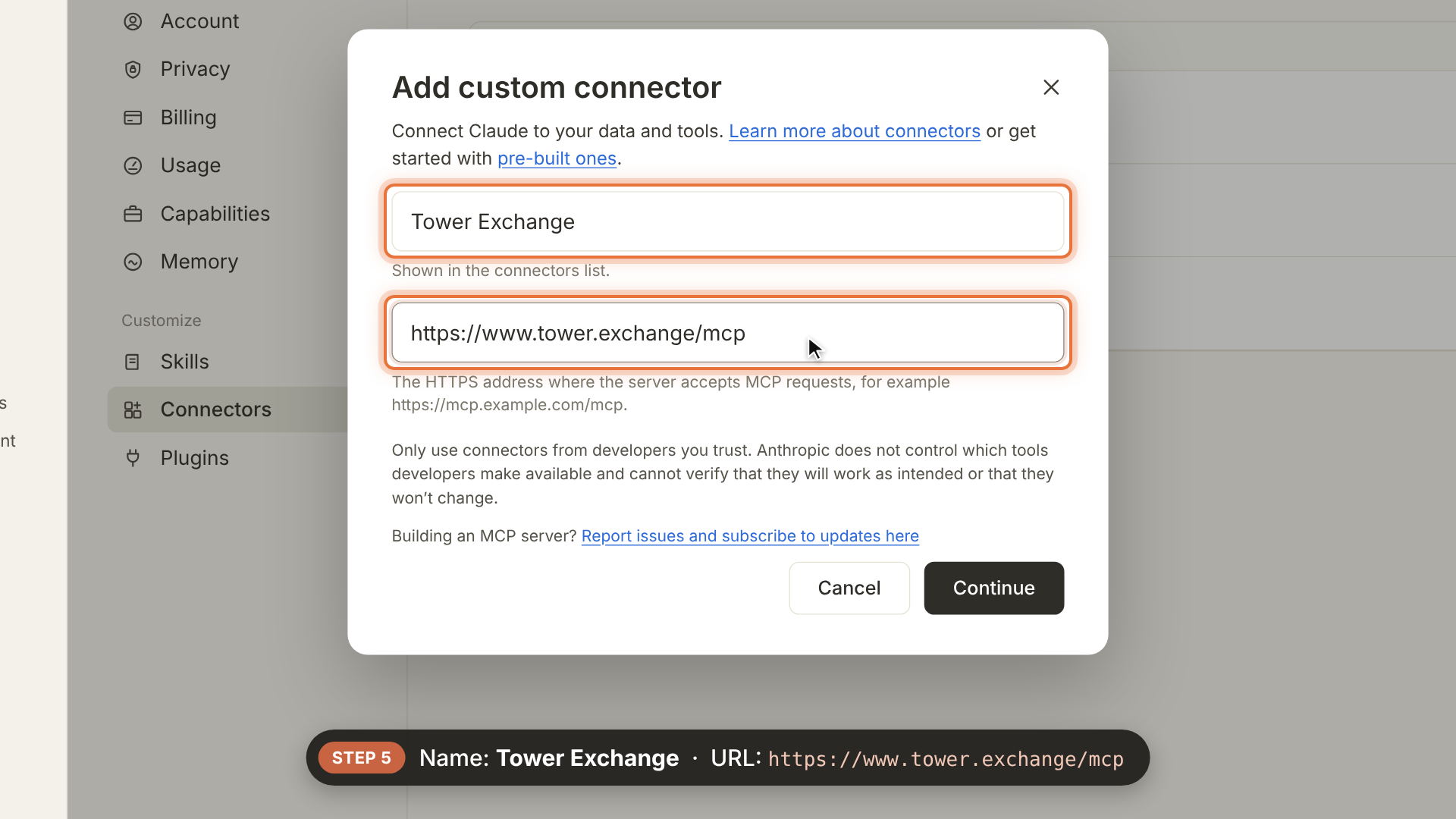
Step 5: Enter Name and URL
Step 5 = Name: Tower Exchange
URL: https://www.tower.exchange/mcp
In the Add custom connector dialog, enter the following parameters:
- Name:
Tower Exchange - URL:
https://www.tower.exchange/mcp
Then click Continue.
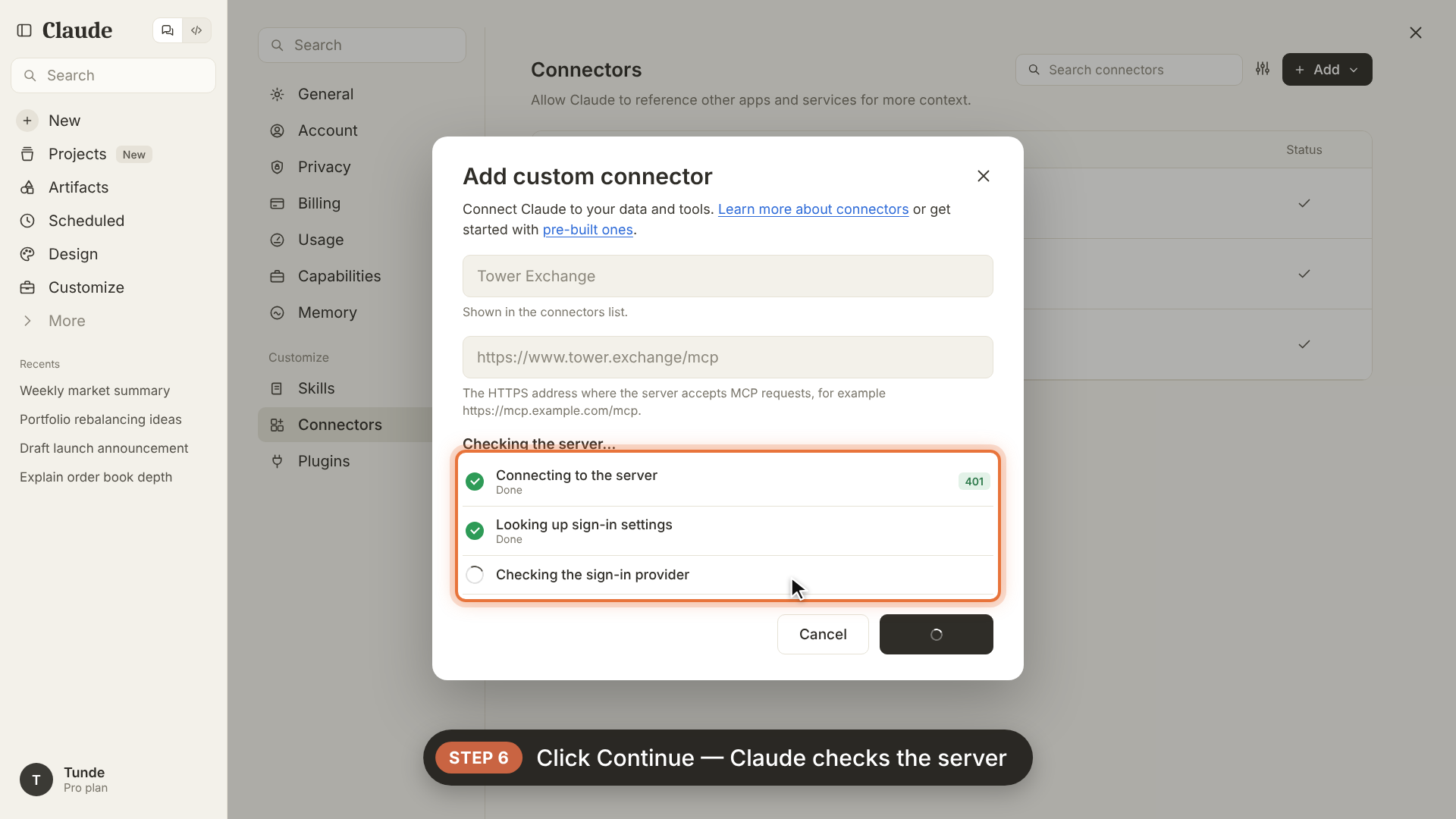
Step 6: Server verification & detected settings
Claude will connect to https://www.tower.exchange/mcp to verify the endpoint and inspect sign-in settings.
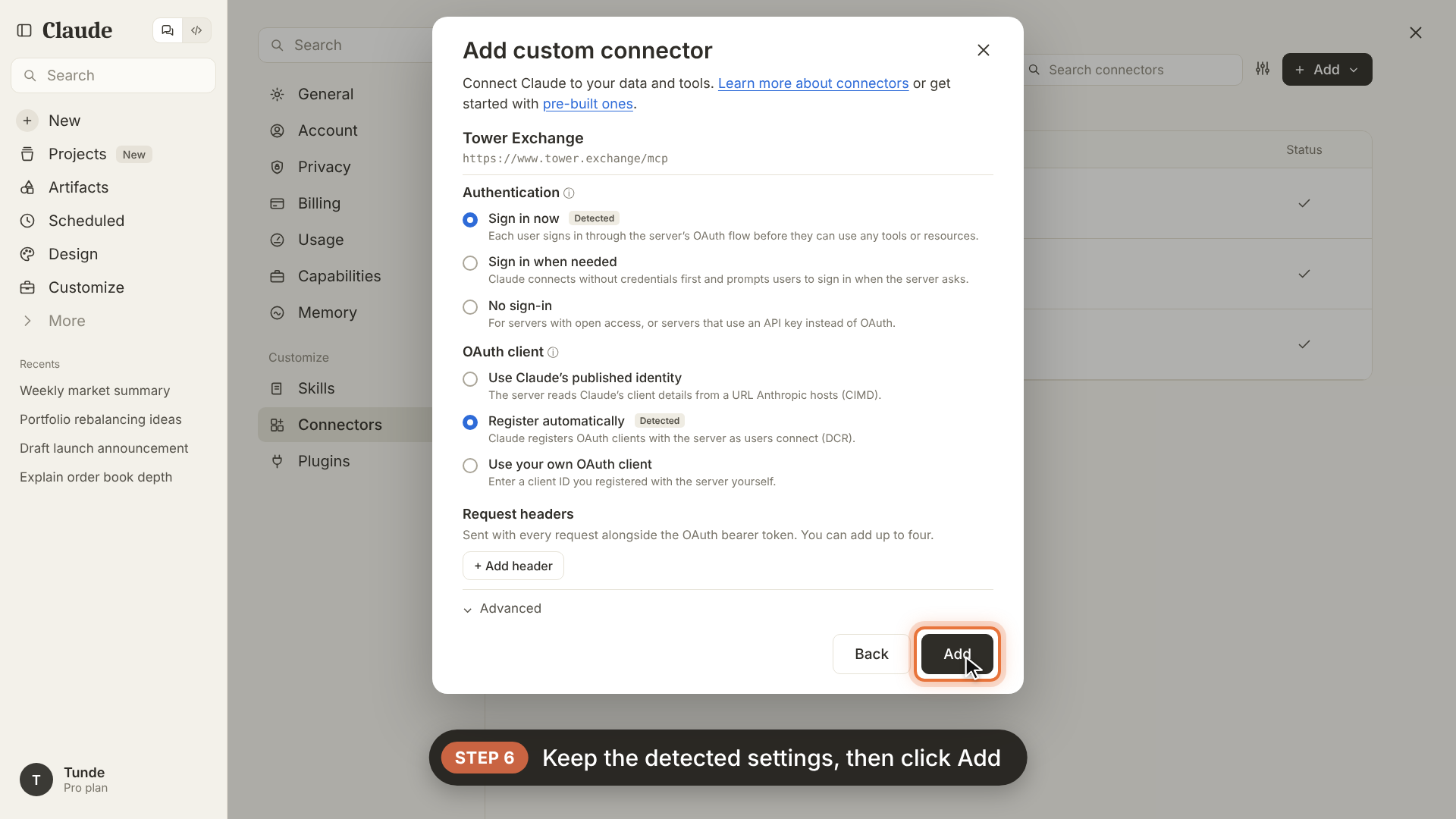
Once verification completes, keep the auto-detected settings:
- Authentication:
Sign in now - OAuth client:
Register automatically
Click the Add button to register the connector.
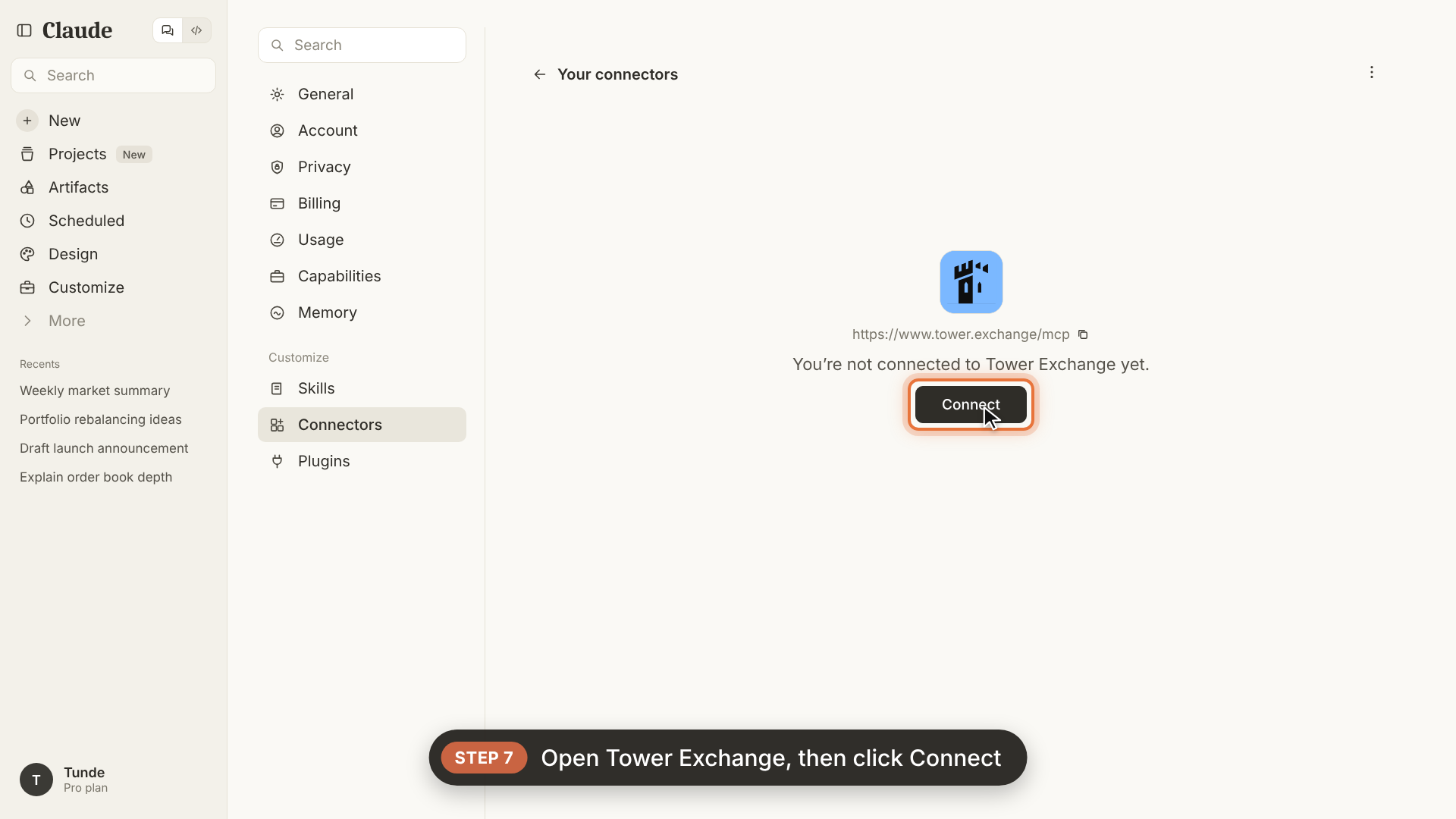
Step 7: Open Tower Exchange connector
In your Connectors list, click on Tower Exchange and select Connect to start the one-time wallet pairing.
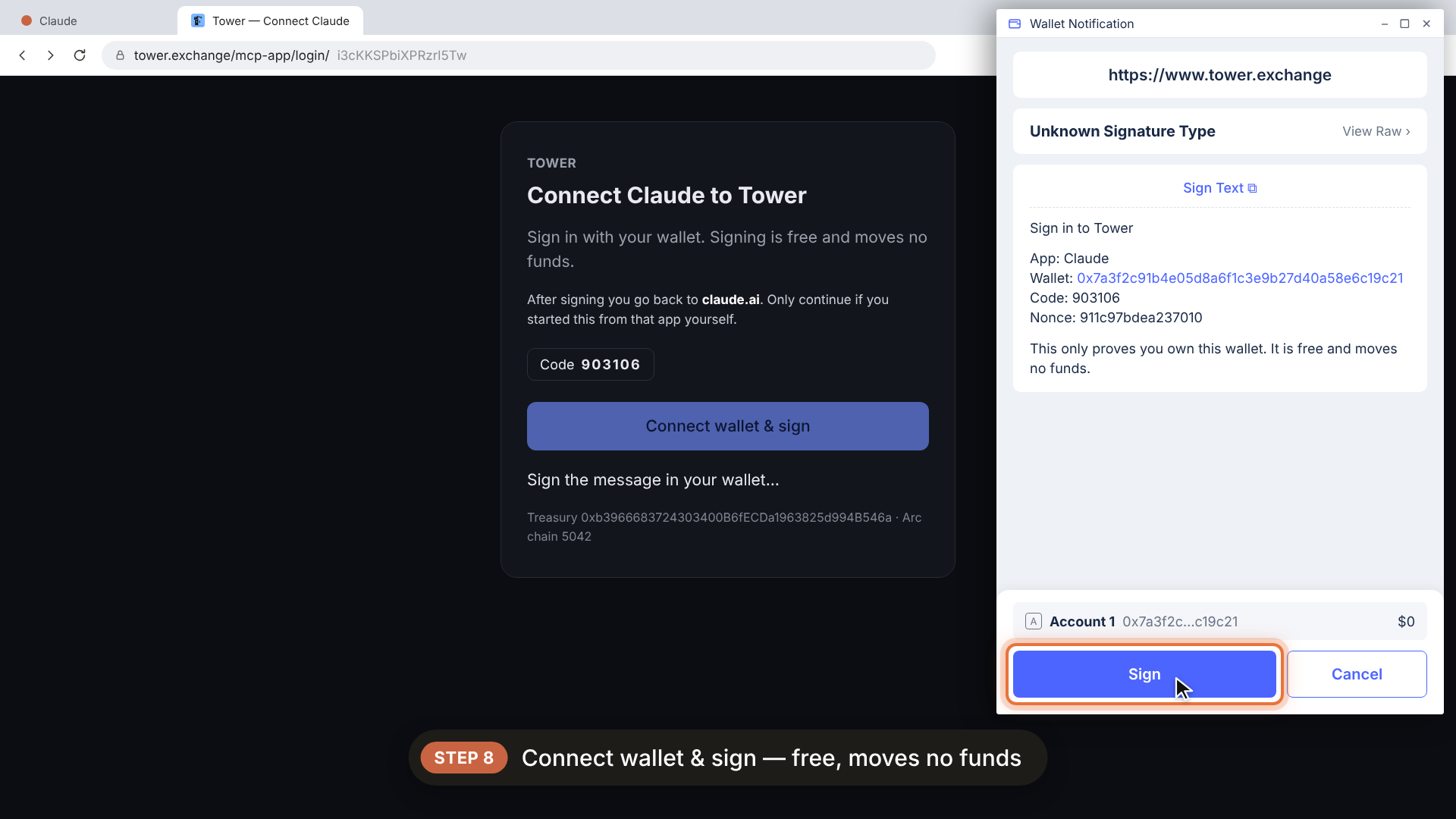
Step 8: Connect wallet & sign
A browser tab will open directing you to tower.exchange/mcp-app/login. Click Connect wallet & sign.
Sign the message in your Web3 wallet (e.g. MetaMask, Rabby, Coinbase Wallet) to verify wallet ownership.
Signing this message only verifies that you own the wallet. It is completely free and moves no funds.
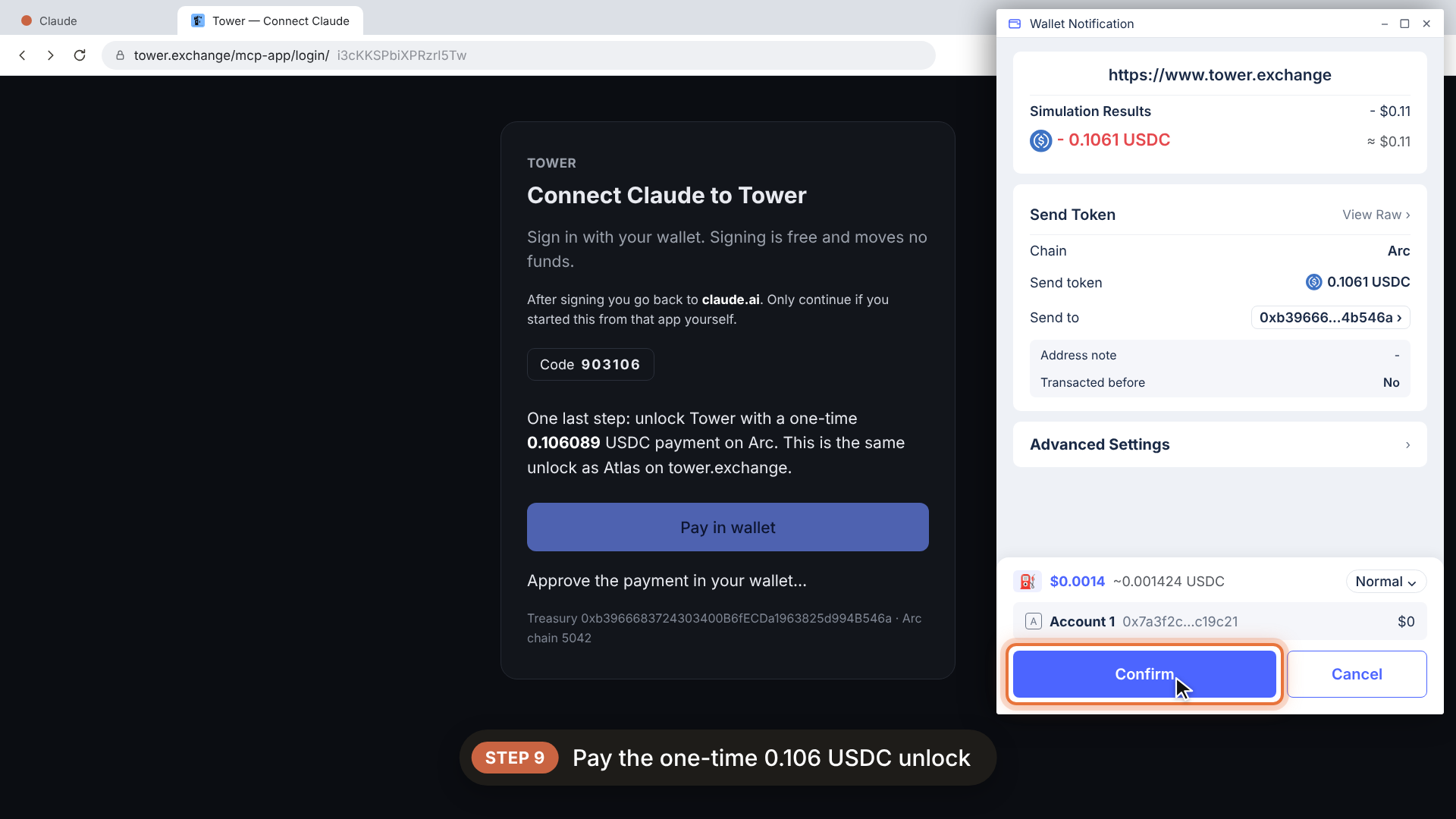
Step 9: One-time unlock & connection confirmation
Approve the one-time unlock transaction (0.106089 USDC on Arc) in your wallet. This is the same unlock as Atlas on tower.exchange.
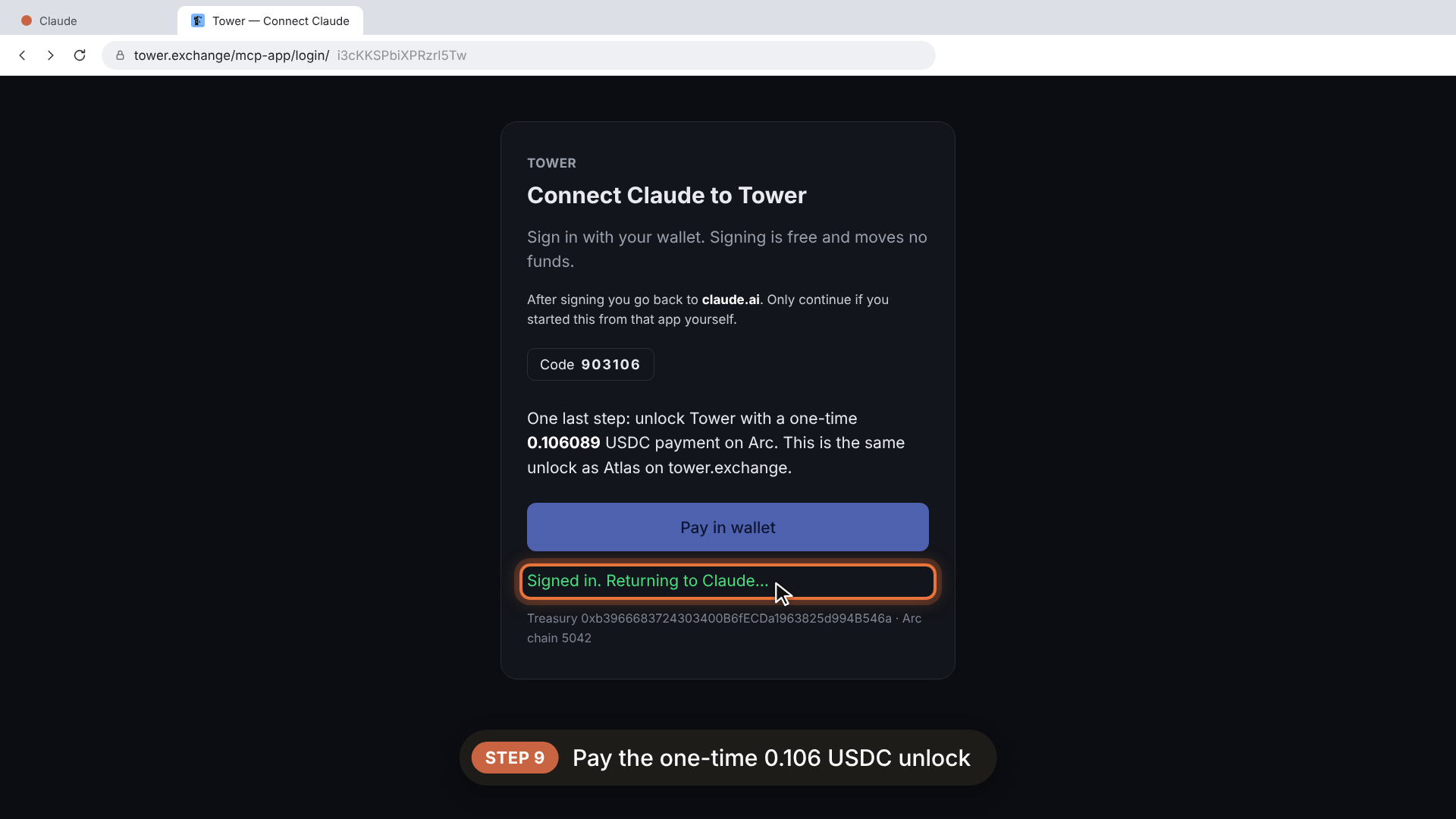
After the transaction confirms on Arc, the window will show Signed in. Returning to Claude....
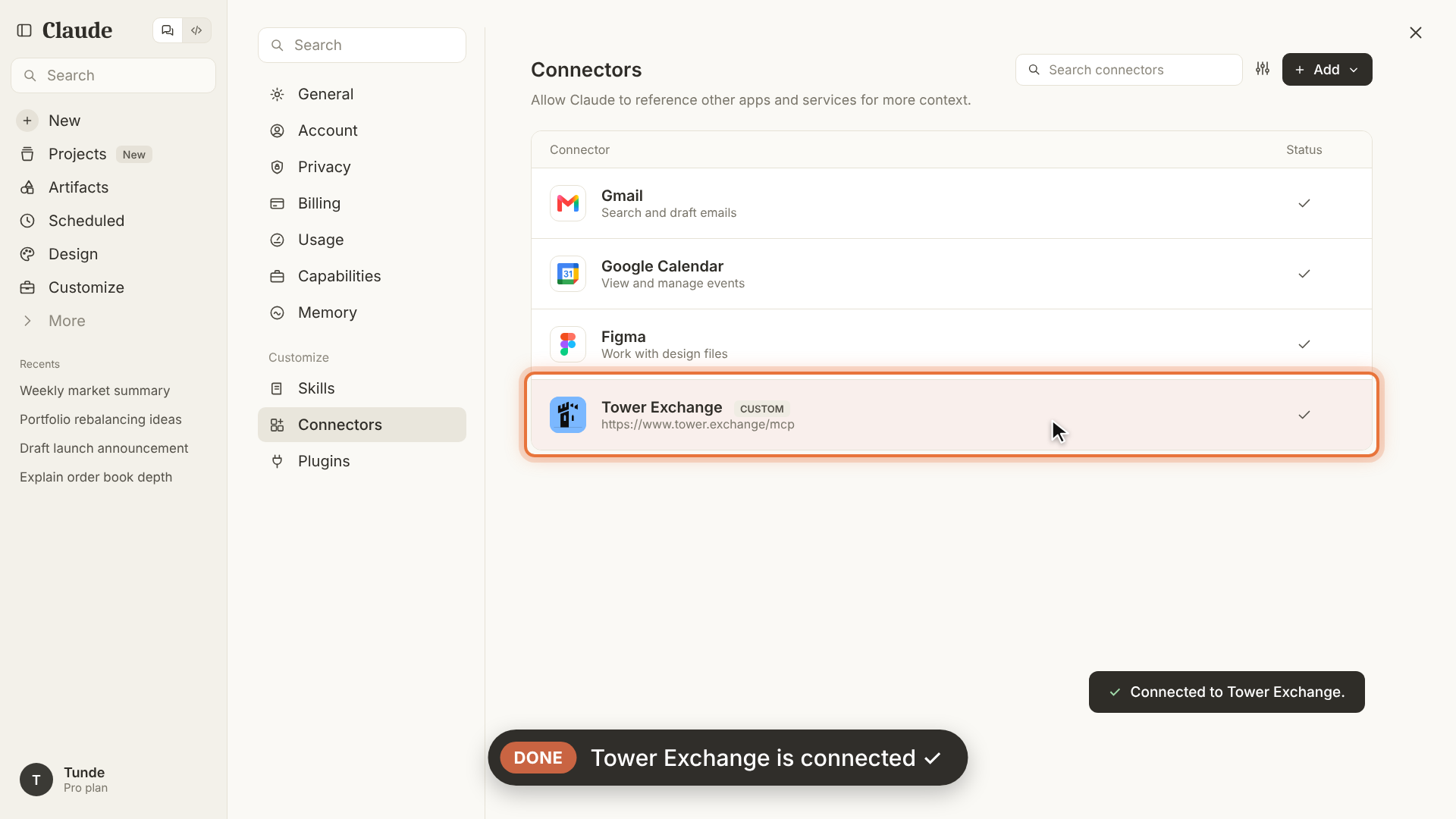
Return to Claude. You will see a green checkmark next to Tower Exchange and a confirmation toast: "Connected to Tower Exchange."
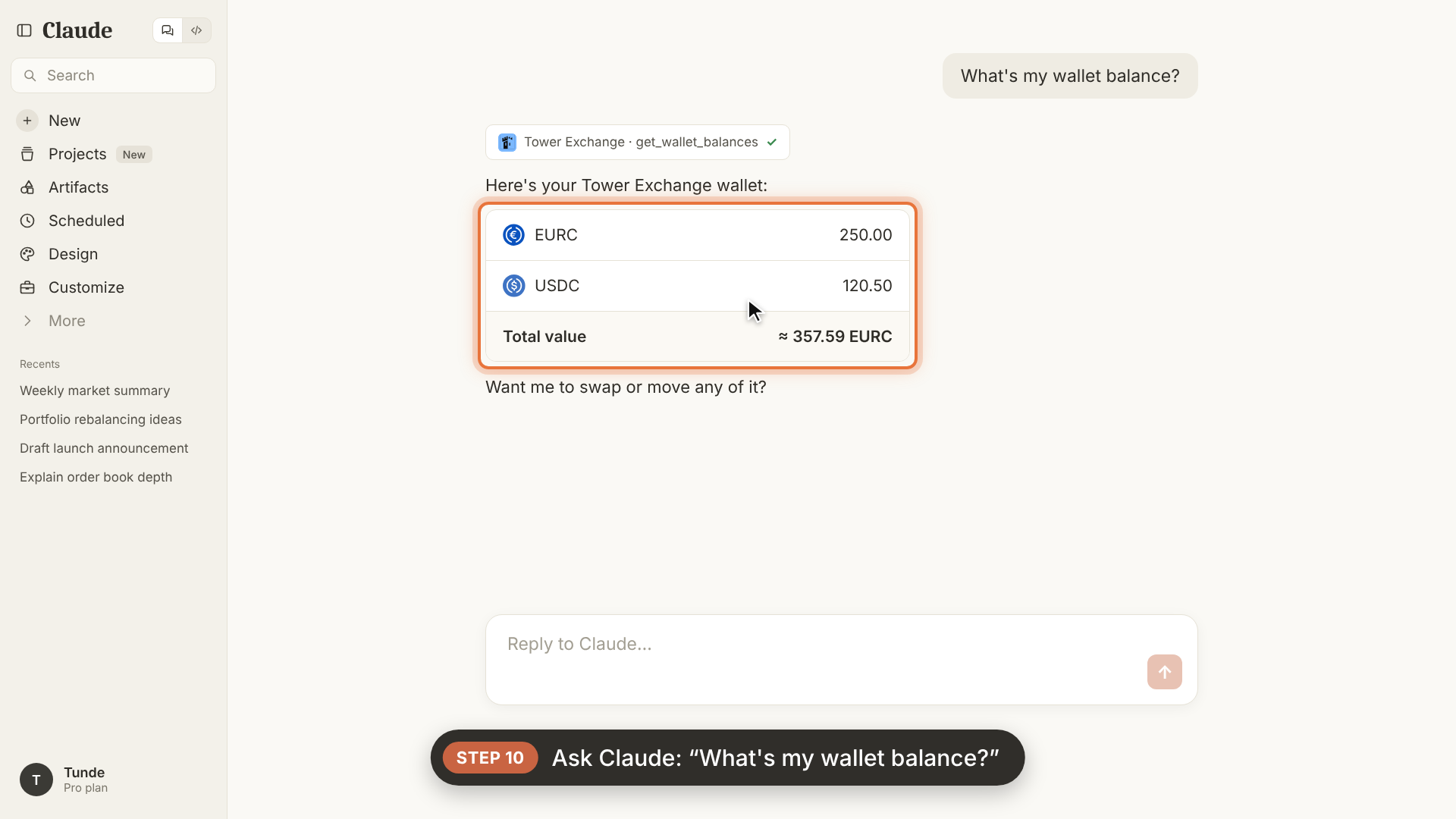
Step 10: Query your wallet balance
Open a new or existing chat in Claude and ask:
"What's my wallet balance?"
Claude uses the Tower Exchange · get_wallet_balances MCP tool to fetch your live on-chain balances (EURC, USDC) and total portfolio value.
Step 11: Execute swaps & grant permissions
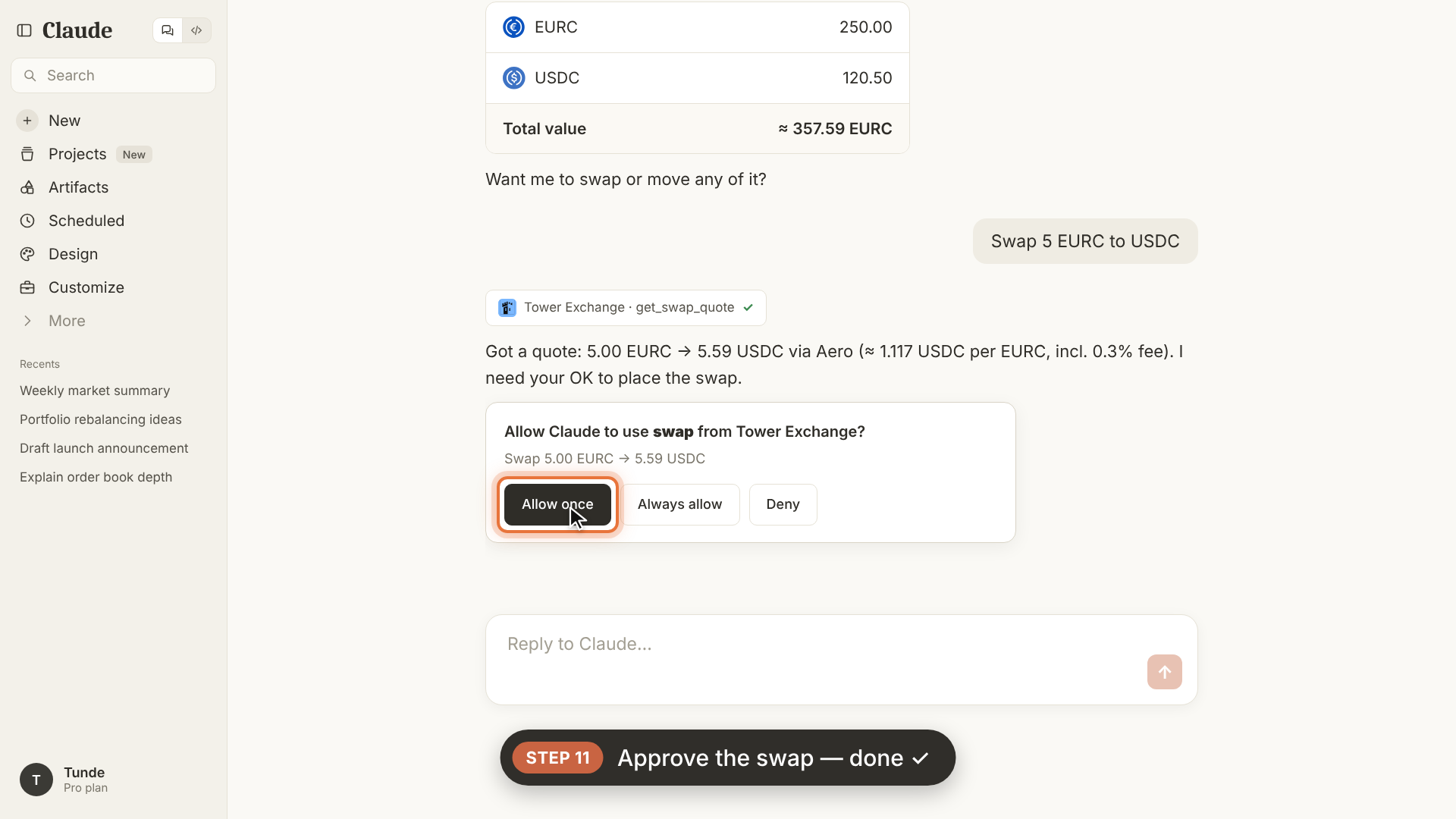
To execute a token swap directly inside Claude, send a prompt such as:
"Swap 5 EURC to USDC"
Claude queries Tower Exchange · get_swap_quote for the optimal DEX route on Arc, and then prompts you for permission:
"Allow Claude to use swap from Tower Exchange?"
Then wait for few minutes Claude will ask for some permission you can just allow basic permissions
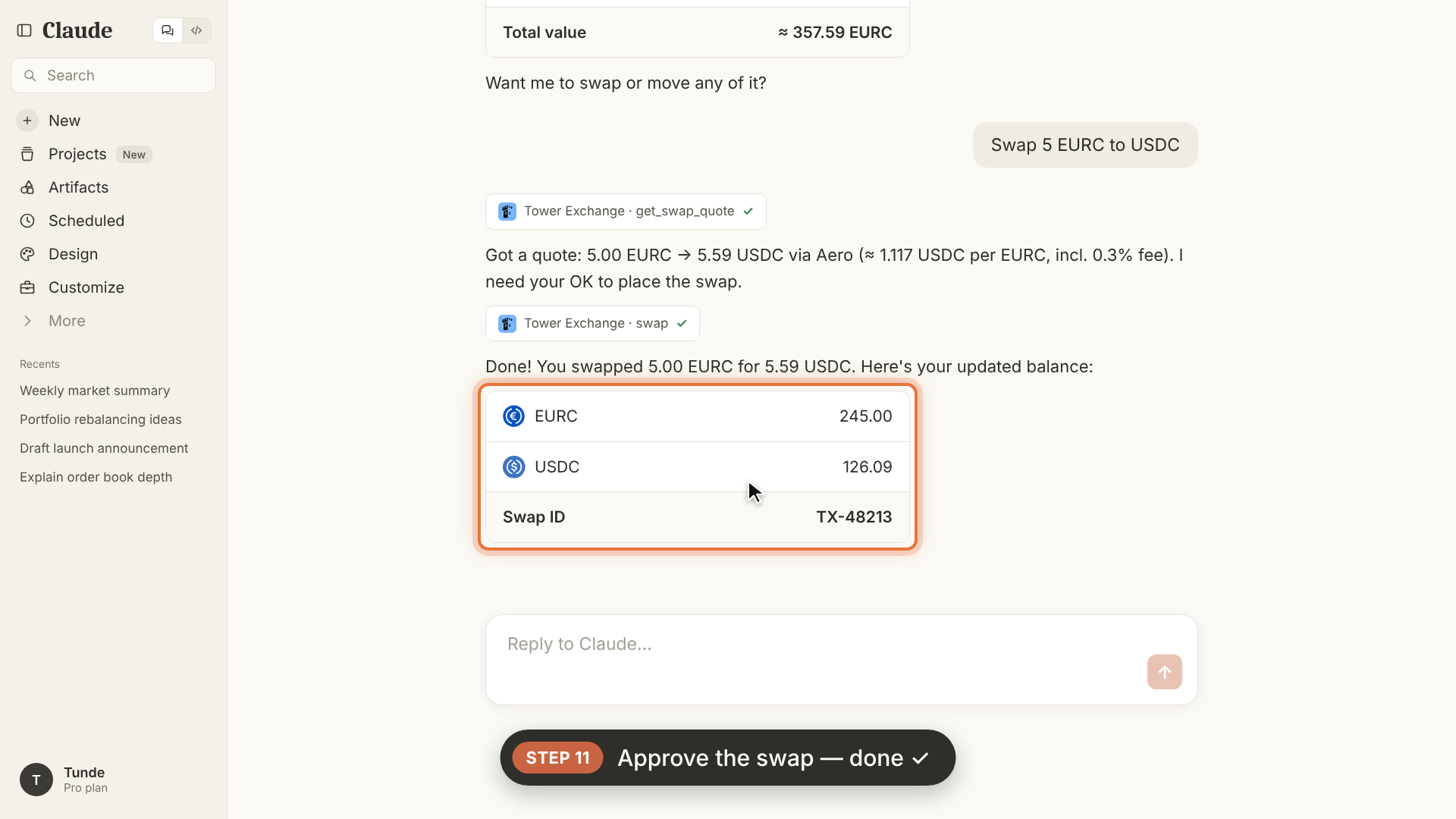
Click Allow once or Always allow to confirm the swap.
Once approved, Tower Exchange routes and executes the swap on Arc. Claude will confirm that the swap was successful, showing your updated balances and transaction Swap ID.
Available MCP Tools
The Tower Exchange MCP server provides the following tools to Claude:
| Tool | Description | User Action Required |
|---|---|---|
get_wallet_balances | Fetches live token balances (EURC, USDC, etc.) for the connected wallet on Arc. | Automatic via chat |
get_swap_quote | Calculates the optimal trade execution route and price quote across all Arc DEXs. | Automatic via chat |
swap | Executes an optimal on-chain swap using the connected wallet. | Requires clicking Allow once / Always allow |
Troubleshooting & FAQ
Why is Claude asking for permission?
Claude utilizes a secure tool-use sandbox. When Claude triggers a tool that executes actions on your behalf (such as placing a trade), it prompts you to confirm. You can safely select Allow once or Always allow.
Are my private keys exposed?
No. Neither Claude nor the Tower MCP server ever has access to your private keys or seed phrase. Connection is established via cryptographic wallet signature and permissions are gated by you.